Daysome support
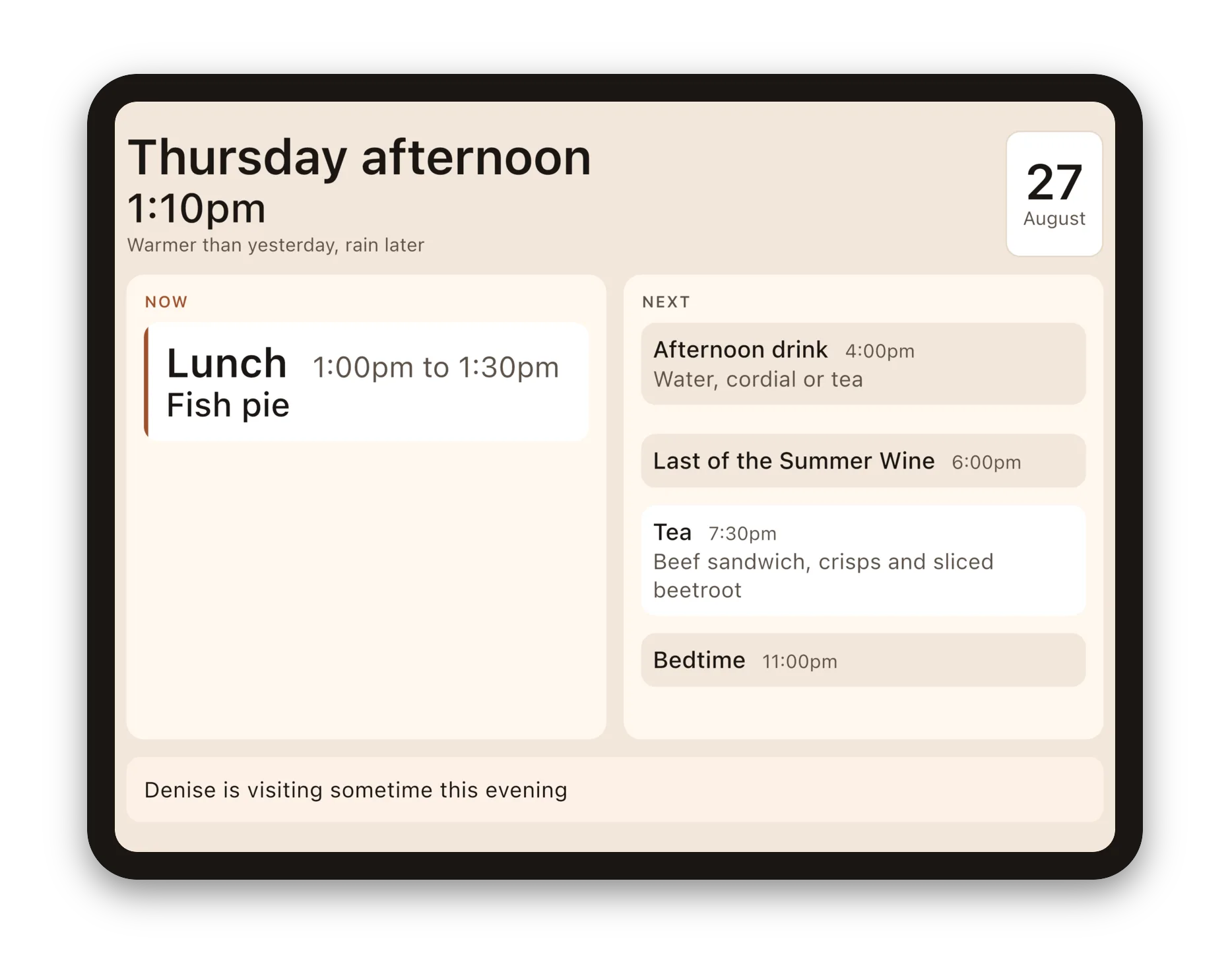
Daysome is a calm day clock, on a tablet. It shows someone their day, large uncluttered, on a tablet they already have. On the home screen its icon reads My Day. This page answers the questions that come up most, and tells you how to reach a person.
There is nothing on the screen to tap. Is it broken?
No — that is the app working as intended. The display is meant to be read from across a room and to be completely useful to somebody who never touches it, because the days it matters most are the days they will not. There are no buttons, no menus and nothing to dismiss.
Everything you might want to change lives behind the settings, below.
Getting to the settings
Tap five times in the top-right corner of the screen, within five seconds. There is nothing drawn there to tap — that is deliberate, because anything that looked tappable would be one more thing for the person to wonder about.
The first time you do it, Daysome asks you to choose a four-digit PIN and to type it again to confirm. There is no default PIN and nothing to look up: choose any four digits and write them down somewhere the family can find them.
The settings close themselves after thirty seconds without a touch, and go back to the display. That is on purpose — a carer called away mid-change must not leave the tablet sitting on a settings screen. Tap five times again to go back in.
Changing what the day says
Inside the settings you will find the whole day, top to bottom. Tap any line to change what sort of thing it is, what it is called, when it starts and finishes, and how often it happens — every day, certain days, or one day only.
Use the household's own words. If the evening meal is Tea in your house, call it Tea. If there are four meals, add a fourth.
Swapping today's meal
Meals are the one thing that changes daily, so they are the quickest thing to change. Open the settings, tap the meal, and pick from the family's list. Four taps, standing in the kitchen, holding something cold.
You can add to and remove from that list at any time. It is worth keeping it matched to what is actually in the freezer, because a list that has drifted is one people stop using.
The note of the day
The note is the line at the foot of the display — "Denise is visiting sometime this afternoon". Write it in the settings, and say when it stops being true: this morning, this afternoon, this evening, or today.
Daysome takes it down on its own at the end of that part of the day. A note promising a visitor who has already been and gone is worse than no note at all.
Something is missing from the display
On a smaller screen, Daysome shows what fits rather than shrinking everything until it cannot be read. If something has dropped off, it will be from the end of the day rather than the next thing due — what is happening now and what is next are never given up.
Turning the tablet to landscape usually brings more back.
The screen keeps going dark
Daysome holds the screen awake while the display is showing, and that is on by default. You can turn it off in the settings. It only really makes sense with the tablet plugged in.
How do I keep the iPad on Daysome?
This is the question we are asked most, and the iPad has a proper answer to it: Assistive Access. It is Apple's own, built in, and Daysome is set up to work with it — the iPad lists My Day as an optimised app, and the day fills the whole screen with nothing else around it.
Turn it on in Settings → Accessibility → Assistive Access. It will walk you through choosing which apps are allowed and setting a passcode. Choose My Day.
Write the passcode down somewhere you will find it. It is not the iPad's usual passcode, it is a separate one, and it is what gets you back out.
To leave Assistive Access, press the top button three times quickly and enter that passcode.
You do not have to leave it to change the day. The five taps in the corner and your PIN still work from inside Assistive Access, exactly as they do the rest of the time, and the display still turns round if you move the iPad.
Is Assistive Access better than Guided Access?
For this, yes, and for one reason that matters more than any other: it survives the iPad being switched off.
Guided Access ends when the iPad restarts. So a flat battery, or somebody unplugging it to hoover and forgetting, leaves the iPad back on its ordinary home screen — usually without anybody noticing until somebody goes looking for the day and it has gone. Assistive Access comes back on its own.
One thing to be clear about before you turn it on: it changes the whole iPad, not just Daysome. The home screen becomes large simple buttons and only the apps you chose will open. That is the point of it, and it is right for some households and too much for others. You can turn it off again at any time with the passcode, and nothing is lost when you do.
It needs iPadOS 17 or later. If you cannot find it in Settings, the iPad is on an older version.
The day looks wrong after the iPad has been off
It should not. Daysome writes the household's day to the tablet as you change it, and reads it back before it draws anything, so a tablet that loses power comes back showing the same day it was showing before.
If it has come back showing an unfamiliar routine, tell us — that is a fault and we want to know about it.
Accounts, households and plans
You don't need an account to use the app. Everything on one device works with no account and no internet connection, and always will.
The household plan connects the device to daysome.org, so family and carers can see and change the day from their own phones and computers, and up to three devices show the same day. In the settings, choose Connect this device, then sign in at daysome.org and enter the code it shows. A new household starts with a free 30-day trial, and nothing is charged unless you buy a plan.
The plan belongs to the household, not to whoever paid, and covers every connected device, whether it's an iPad, an Android tablet, a Fire tablet or a phone. Accounts and plans explains who owns a plan, what happens when you disconnect or switch households, and how it works across different stores.
Talk to a person
It helps to tell us which tablet it is, which version you are on, and what the screen actually says — a photograph of it is worth a page of description.
Contact
We aim to answer emails to
Daysome is made by Multizone Limited, Mobile apps, software and product management consulting since 1998. Registered in England and Wales, company no. 3504416. Leatherhead, KT23 4JY, United Kingdom